BYD Seal Downgrade Guide
This is a guide on how to downgrade the BYD Seal to be able to install apps.
Introduction
In this tutorial I will show you how to downgrade BYD Seal from V1.1 (2310) to V1 (2307). This will bring back the ability to install apps in the car’s screen.
Warning
This process might brick your car’s screen. Do it at your own risk. I am not responsible for any damage caused by this process.
Requirements
- A USB drive with at least 8GB of storage.
- A computer with internet access.
- Firmware file.
- Around 1 hour of your time.
Let’s get started
First, we need to download the firmware file. You can download it from here.
Once you have downloaded the file. Rename it to UpdateFull.zip. Now plug in your USB drive and format it to FAT32 or exFAT, inside it create a folder named BYDUpdatePackage and go inside it and create another folder named msm8953_64 and then copy the UpdateFull.zip file inside the msm8953_64 folder.
Make sure the file structure looks like this:
- BYDUpdatePackage
- msm8953_64
- UpdateFull.zip
- msm8953_64
Downgrading
Now that we have the USB drive ready, we can start the downgrade process.Go in your car and plug in the USB drive in the USB port.
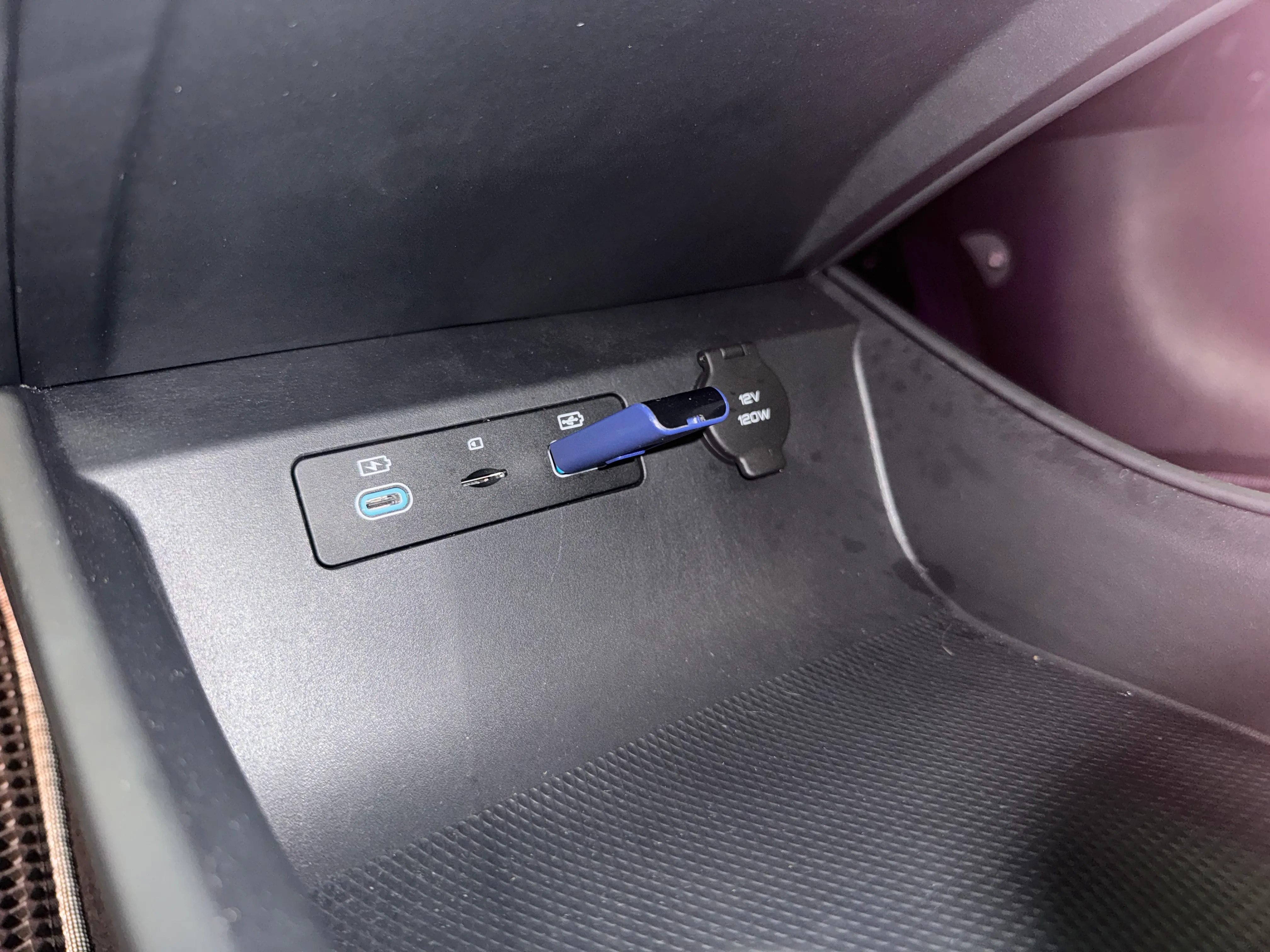
If you have put the file in correctly you should see a pop up in the car saying that you can downgrade. Click on the pop up and the car will start the downgrade process.
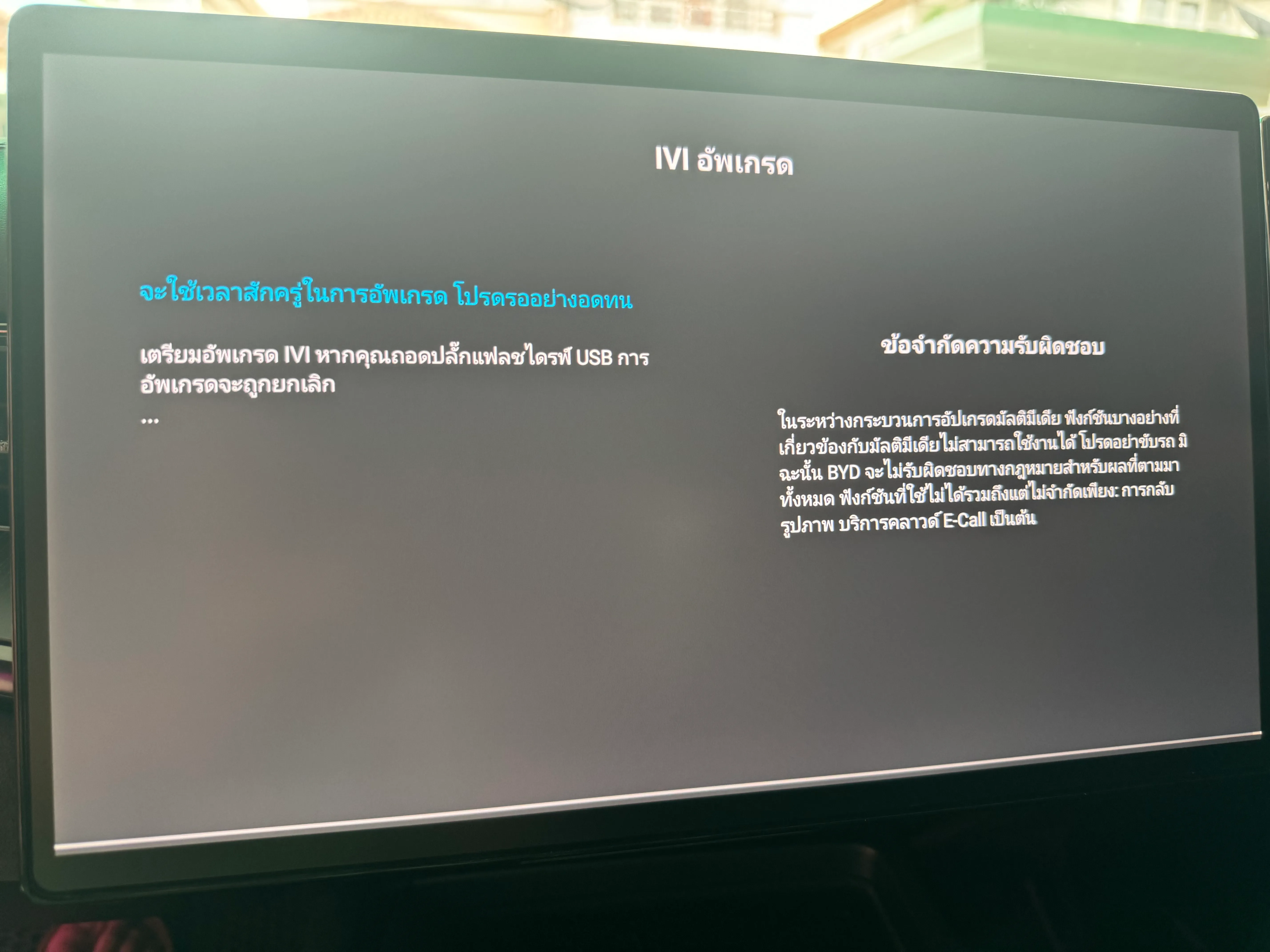
Now you just have to wait for the process to finish. It will take around 30 minutes to 1 hour to complete.
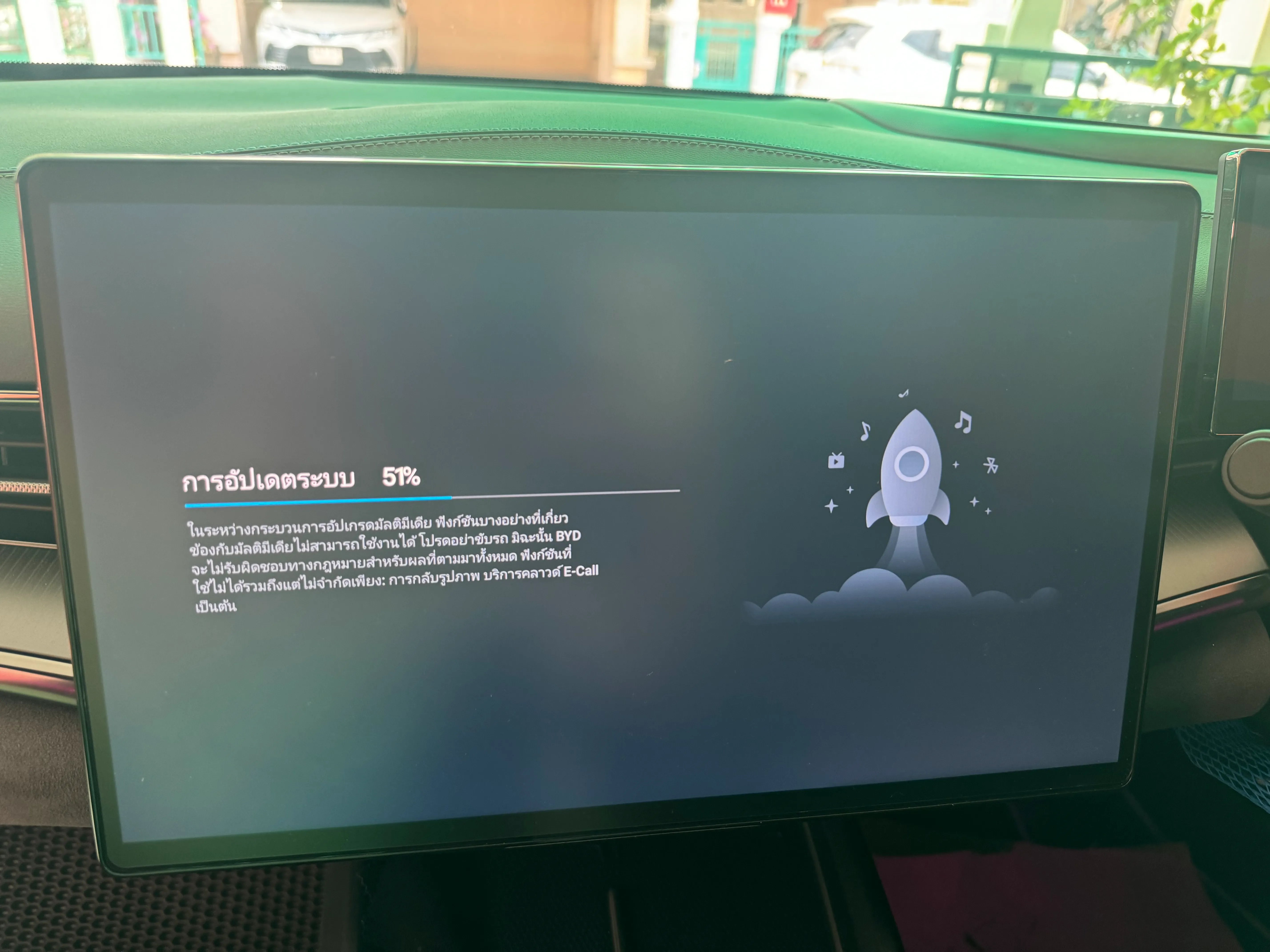
You have to wait for this screen to reach 100%
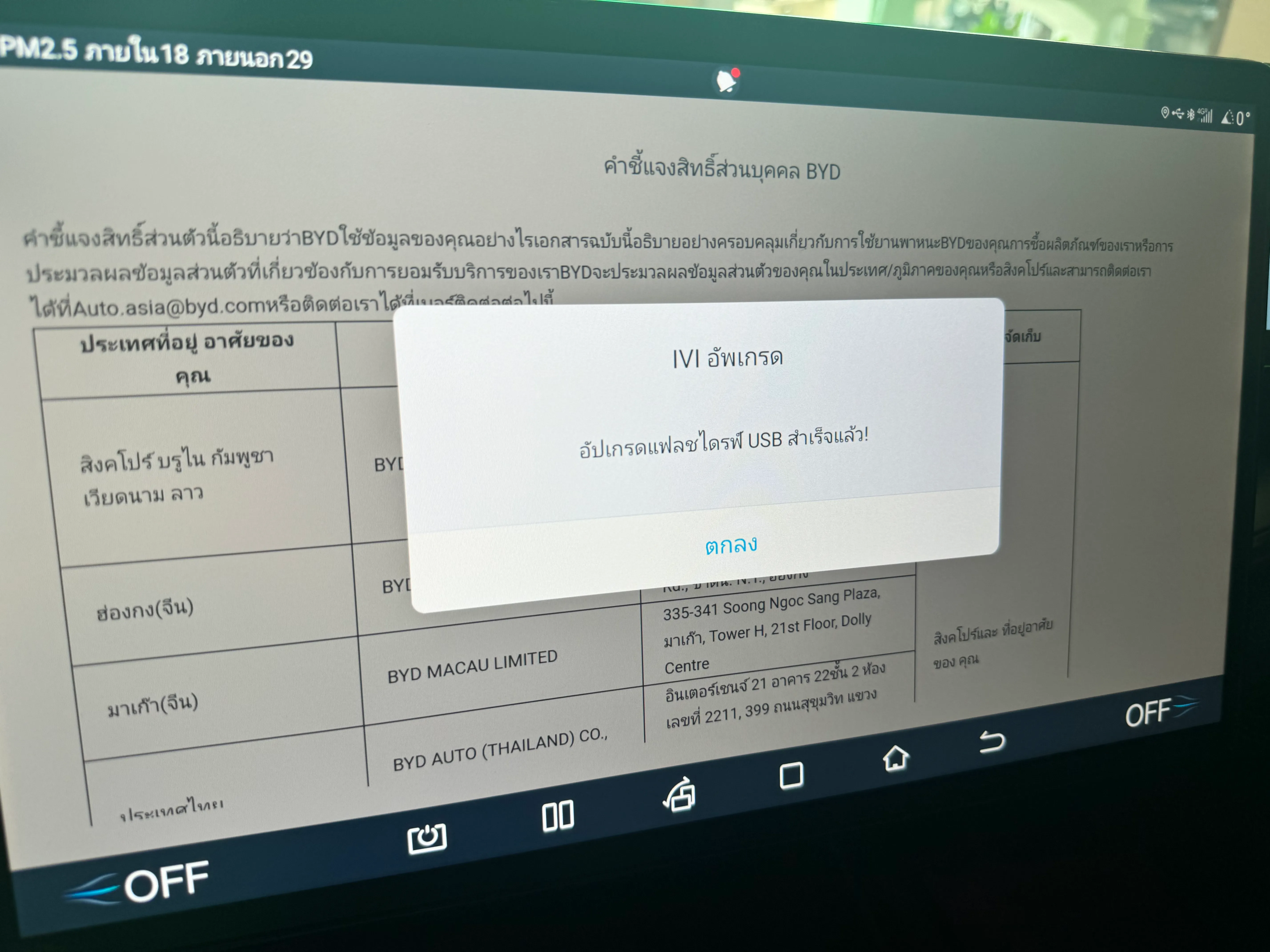
When it finishes you will see a screen like this.
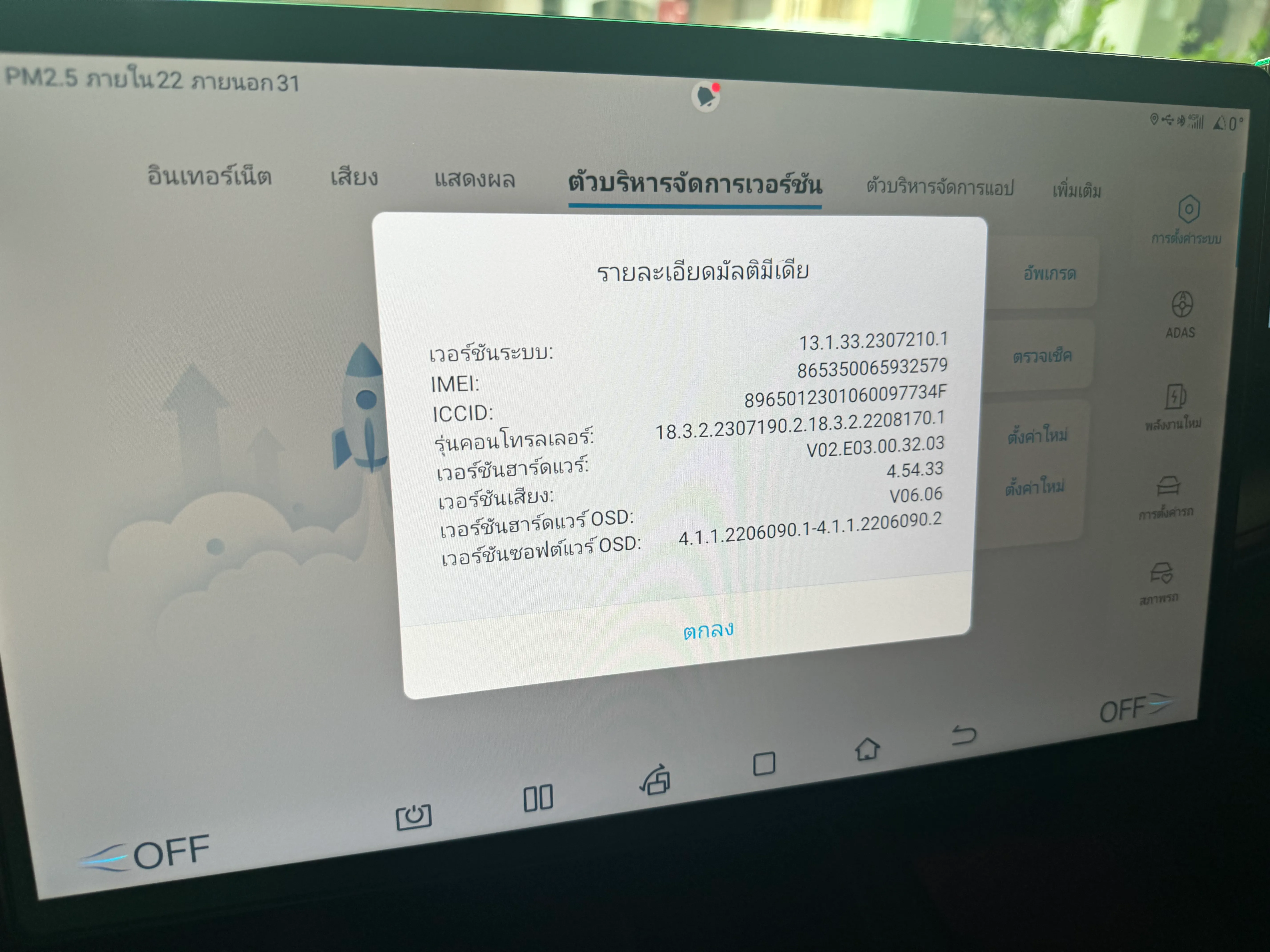
As you can see here the version is now V1 (2307).
Conclusion
You have now successfully downgraded your BYD Seal. You can now install apps in the car’s screen. Enjoy!